
Here’s how it works:
1. Select and Install the Canva App
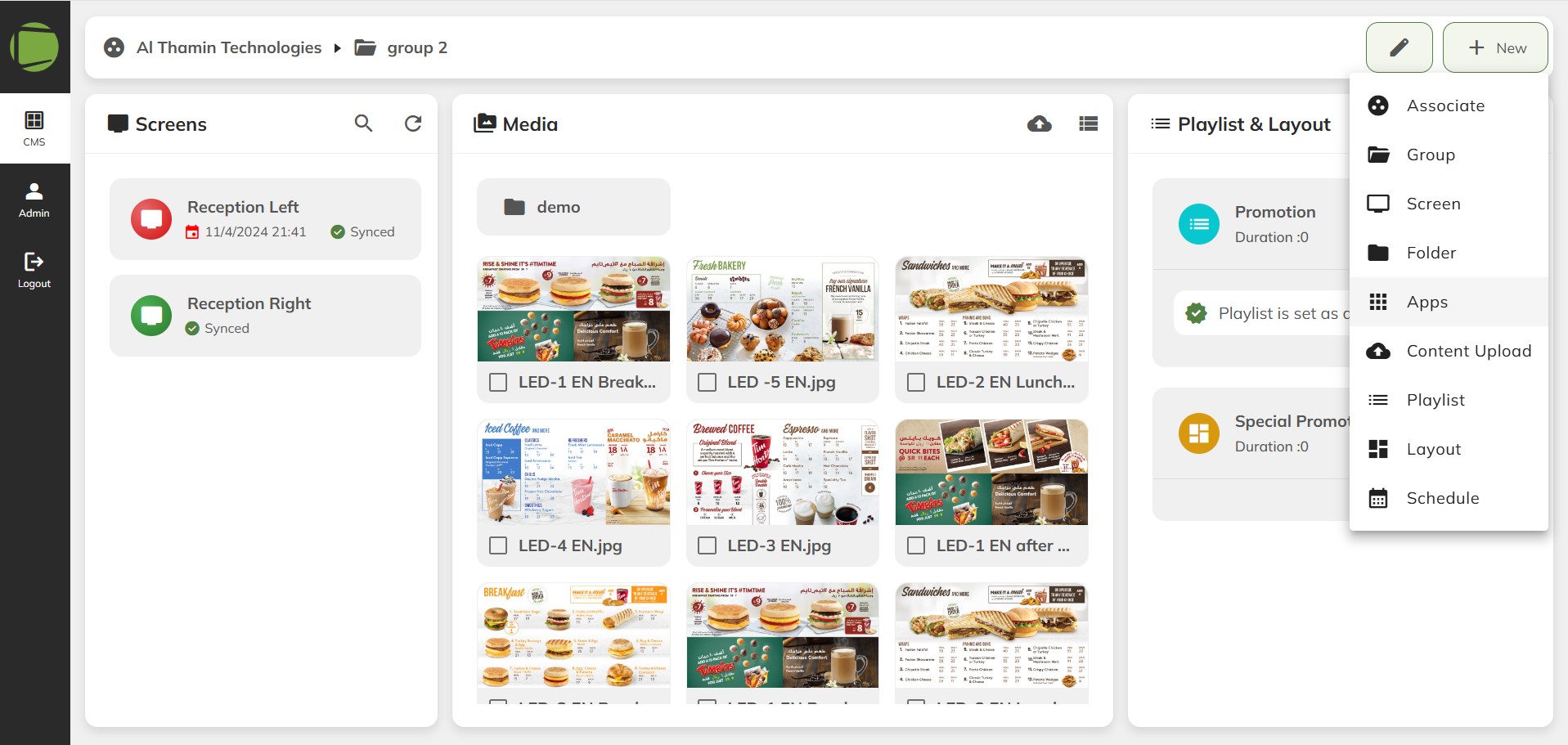
1.1 Sign in your existing Screen Drive accountand visit the App from the right-hand New menu.
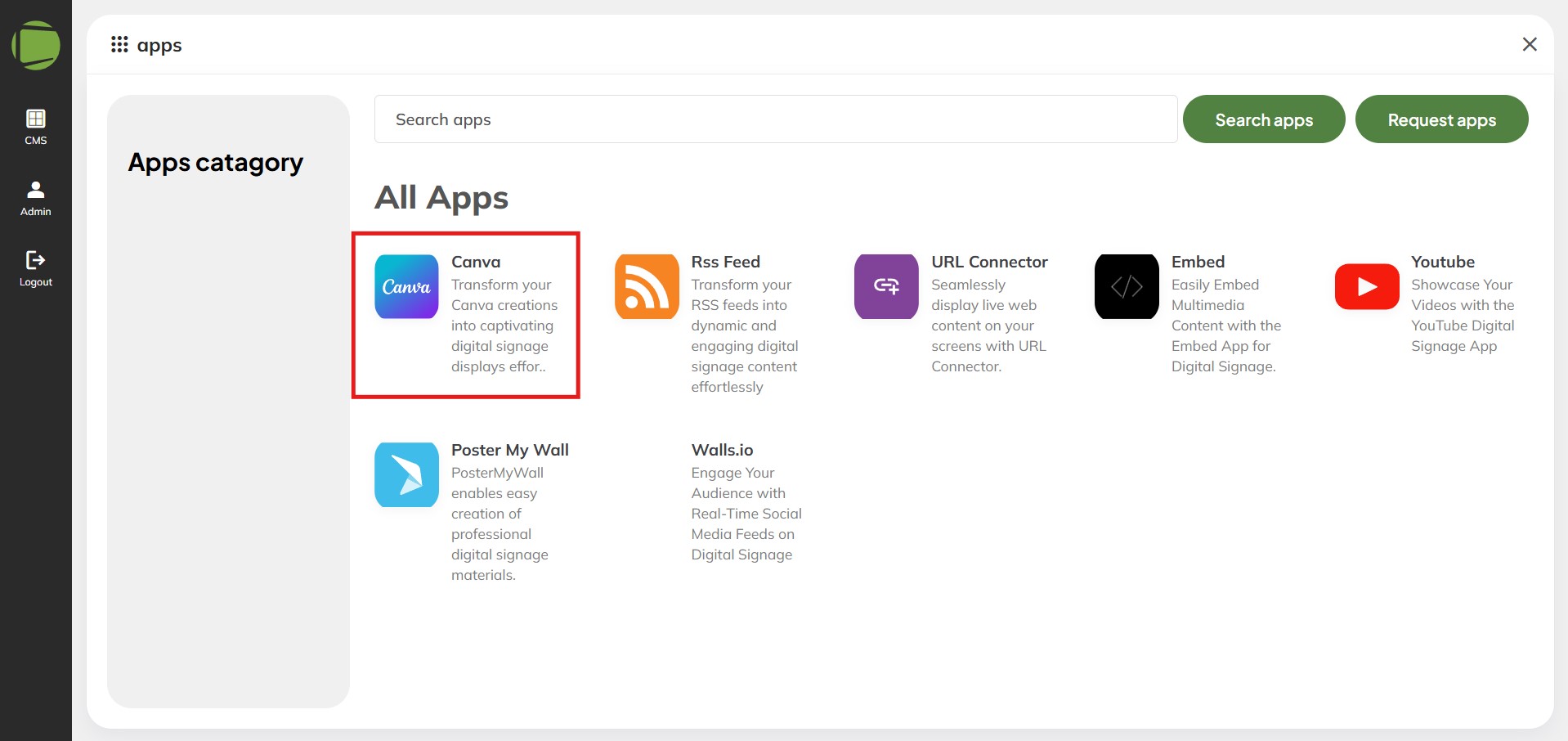
1.2 By clicking on Canva app or by searching for “Canva” in the app directory, you’ll find the screendrivie’s Canva app, which allows you to stream videos seamlessly on your screens. This app enables integration with various streaming services for a smooth viewing experience
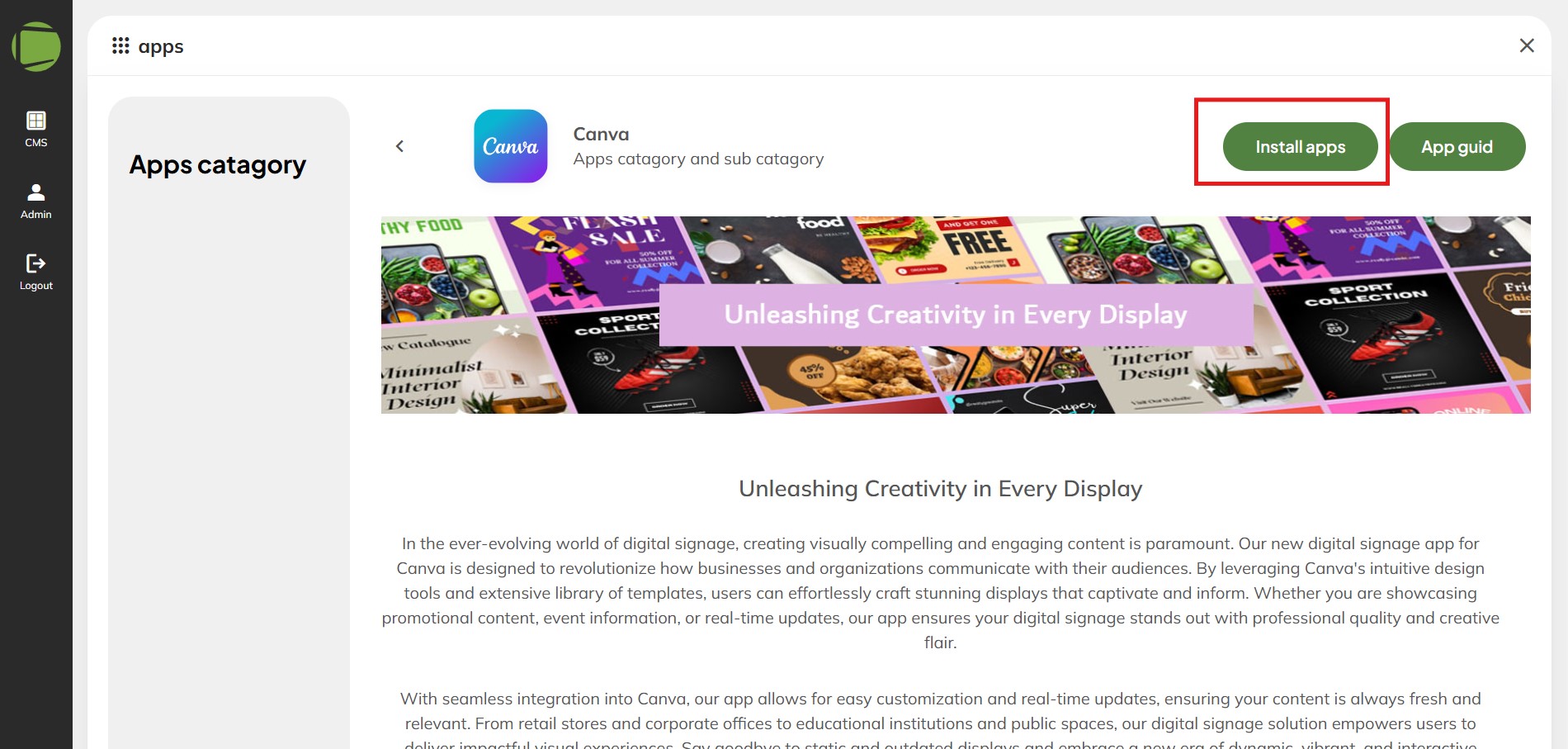
1.3 From there, click the “Install App” button to add an instance of the Canva app to your account
2.Choose your Canva settings
2.1 Once the app is installed, you’ll be taken to the settings panel, where you can create and customize an instance of the canva app to suit your needs.
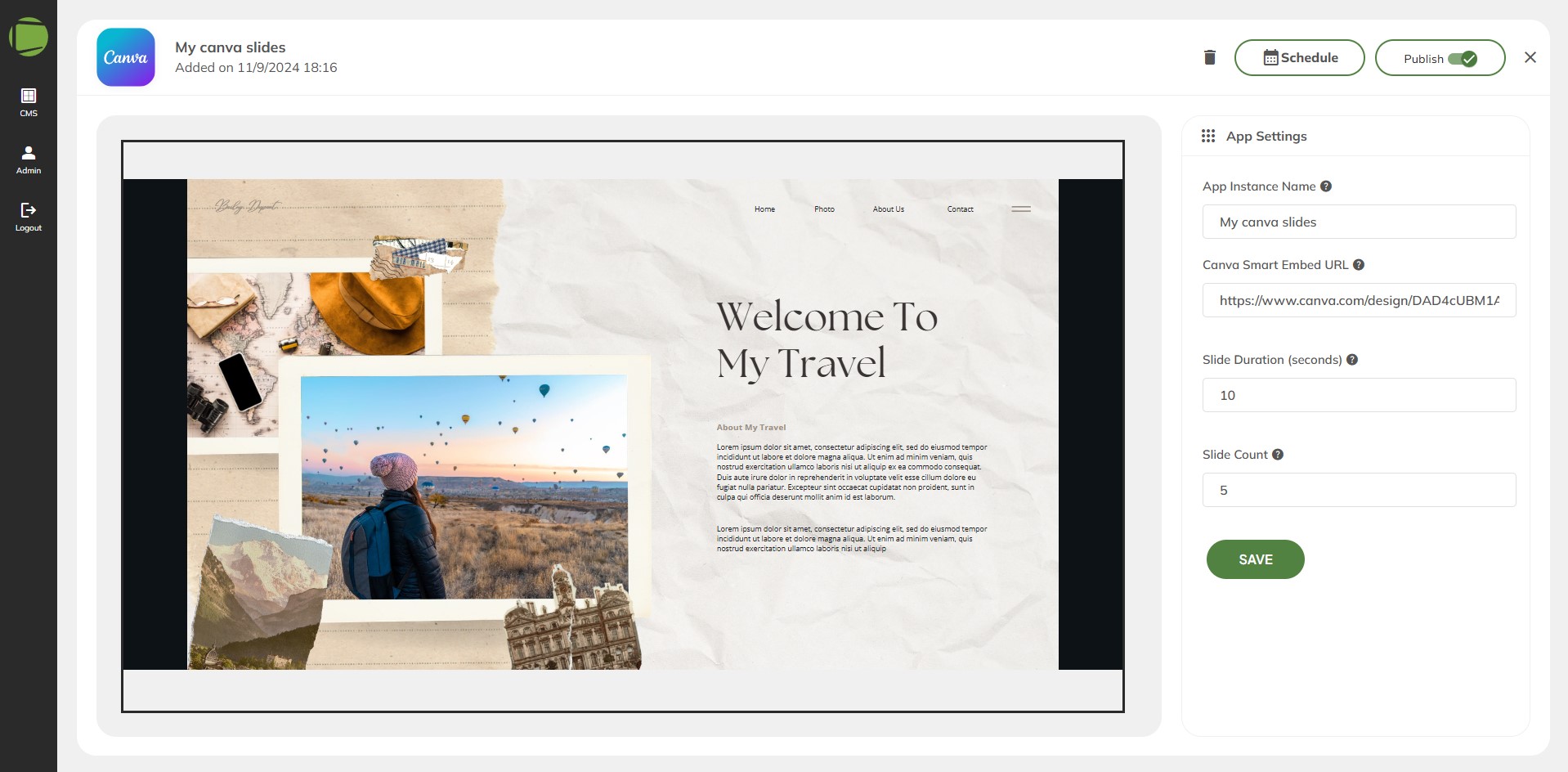
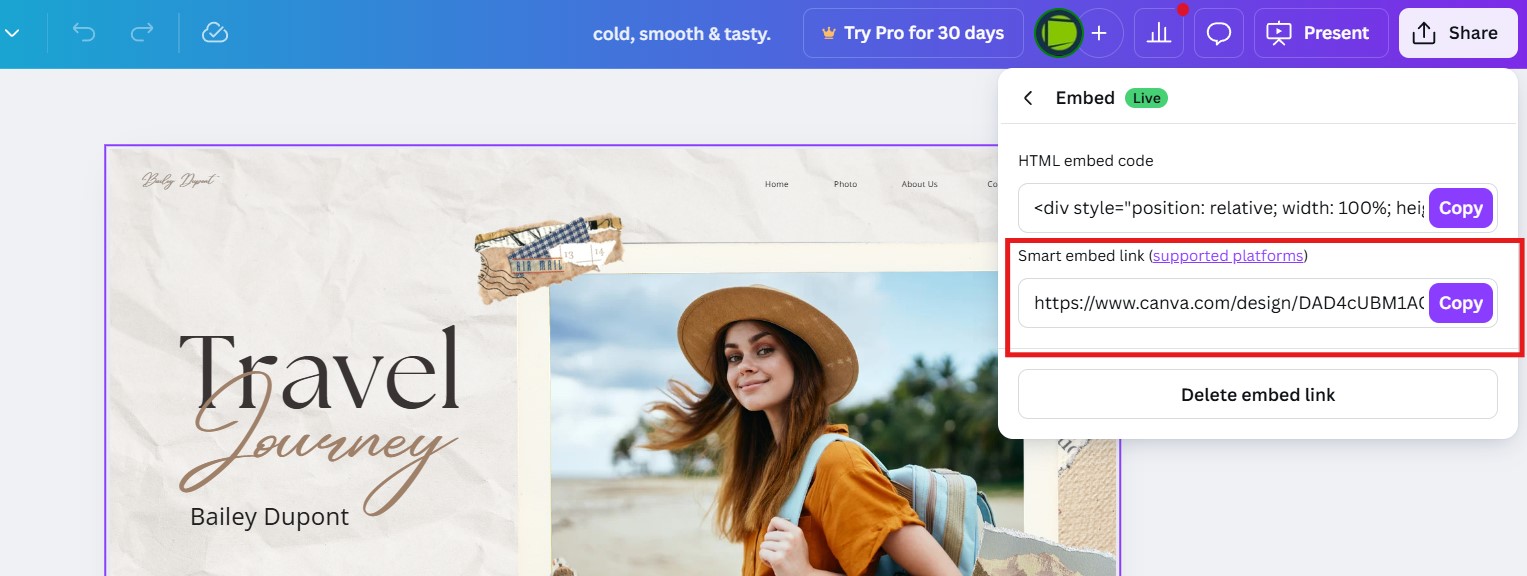
Easily get your smart embed link directly from your design platform!
Next, find the smart embed link for the design you want to show on your screen
2.2. Sign in to canva.com and select the design you want to share!
2.3. Click ‘Share’ at the top right, then select ‘More’ to find the Embed options.
2.4. Make sure your design is set to public, then click ‘Embed’ again to access two embed link options.
3. Add Your URL for Canva app
3.1. Add a new instance of the app to your account and paste the smart embed link into the embed link field
3.2 This section allows you to add an embedded URL to the canva, ensuring proper integration and seamless data processing.
Note: An incorrect or broken URL may cause an error message during setup.
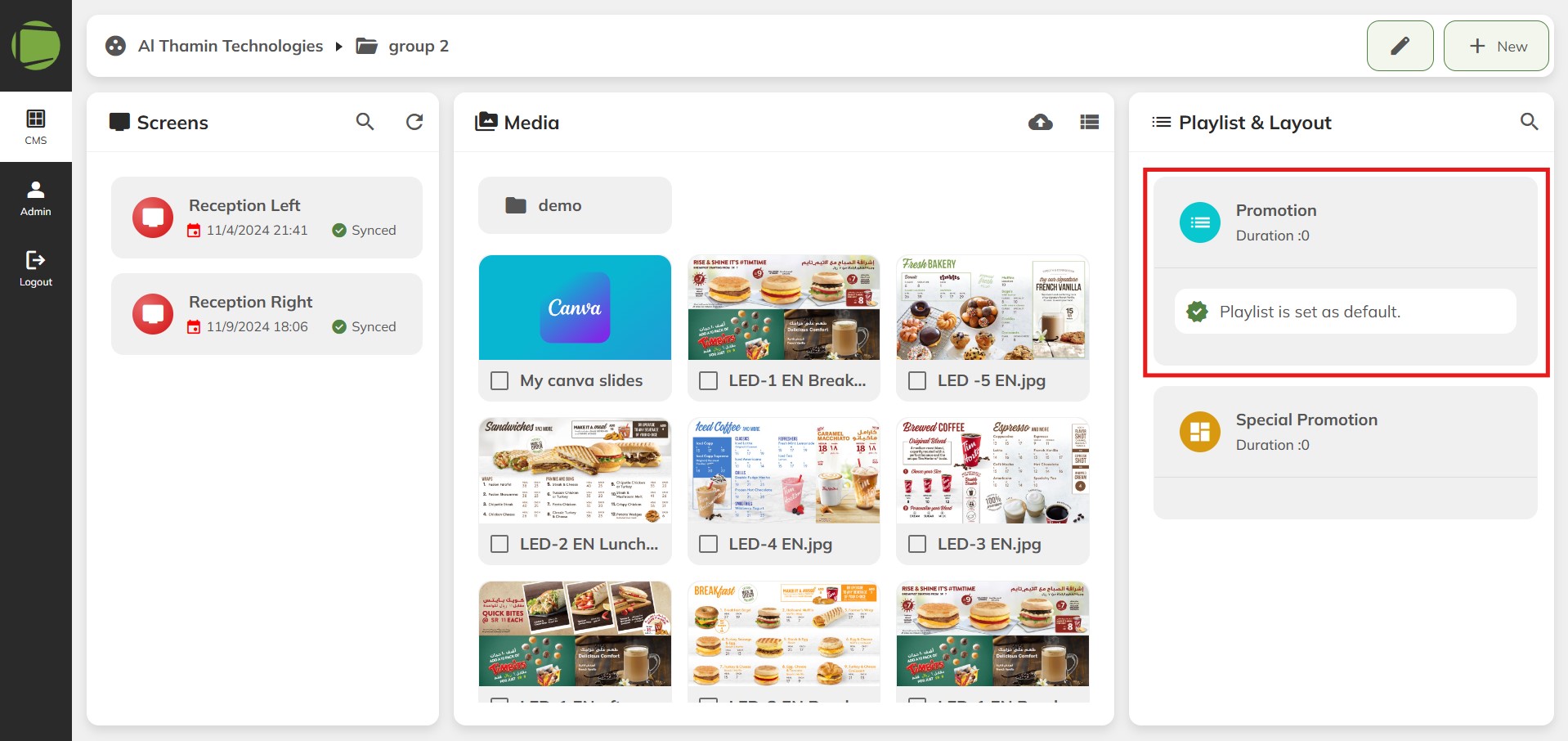
4. Add your Canva app to a Playlist or Layout
4.1 Once you have configured your canva app, it can be easily added to a Playlist or Layout for display on your screens. Simply open the “Playlist” or “Layout,” select the canva app from the content gallery, and click the “Add” button.
4.2 Click the “Add” button to include the canva in your Playlist or Layout for seamless integration and display.
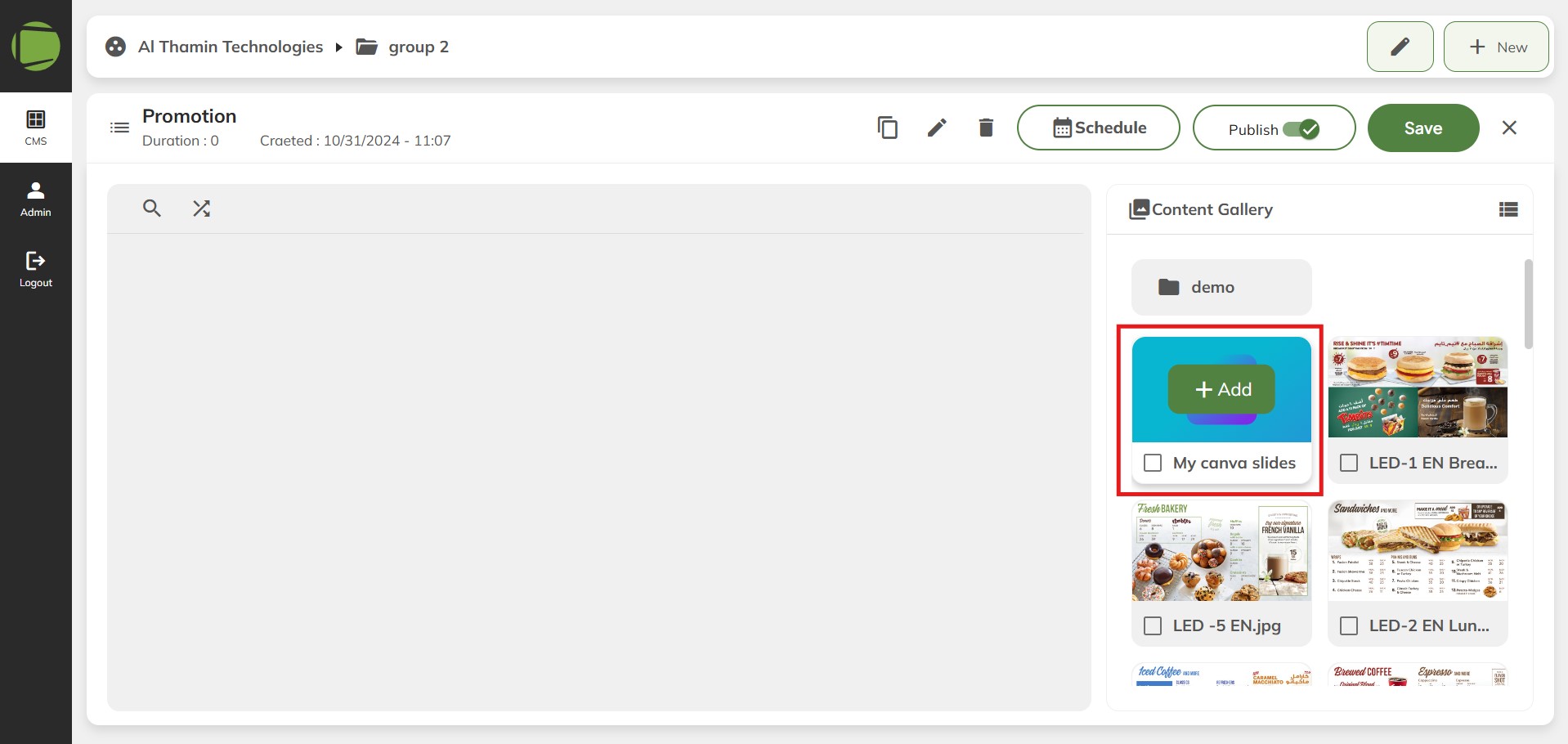
4.3. After successfully adding the canva app to the playlist, be sure to save the playlist.